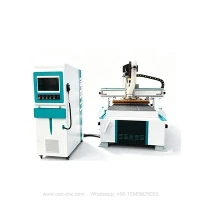
How does woodworking engraving machine stitch breakpoint engraving?
Due to the limitation of the maximum engraving area of the woodworking engraving machine, sometimes the size of the material we want to process is larger than the maximum size of the machine. At this time, we need to use such a function-graphic segmentation. Decompose an overall figure into several independent figures, and each figure after the closed figure is decomposed is still closed. Separate graphics can be made as paths, so that large-format engraving requirements can be completed.
There are many forms of graphic segmentation: linear segmentation, rectangular segmentation, elliptical segmentation, parallel line segmentation, circular segmentation and ray segmentation.
1. Straight line segmentation
Select the graphic to be edited, select [Modify]/[Simple Split]/[Split Line] command in the menu bar, and then draw a straight line on the selected graphic, the graphic will be divided, and the drawn straight line must pass through the divided graphics!
2. Rectangular segmentation
Select the graphic to be edited, select [Modify]/[Simple Split]/[Rectangular Split] command in the menu bar, and then draw a rectangle on the selected graphic, the graphic will be divided, and the boundary of the rectangle must be the same graphics intersect.
3. Ellipse segmentation
Select the graphic to be edited, select [Modify]/[Simple Split]/[Ellipse Split] command in the menu bar, and then draw an ellipse on the selected graphic, this graphic will be divided, and the boundary of the ellipse must be the same graphics intersect.
4. Parallel line division
Before performing this operation, first select the graphic to be edited, and then select the [Modify]/[Complex Segmentation]/[Parallel Line Segmentation] command in the menu bar, and a parallel segmentation setting dialog box will pop up, in which there are segmentation rotation angle settings, Hold interval setting, split interval setting. The rotation angle refers to the angle between the horizontal dividing line and the horizontal line, the reserved interval refers to the width between the remaining parts after the division, and the division interval refers to the blank width between the deleted parts after the division. Use the mouse to drag the parallel dividing line to a suitable position, click the left mouse button or press the "Enter" key to divide the parallel line. If you want to cancel the operation, click the "Cancel" button in the Parallel Line Separation Setting dialog box or press the "ESC" key and click the right mouse button.
5. Ring segmentation
Select the graphic to be edited, and then select the [Modify]/[Split]/[Ring Split] command in the menu bar, and a ring split setting dialog box will pop up, including initial radius settings, retention interval settings, and split interval settings. The initial radius is the minimum reserved interval value, and the reserved interval is the same as the split interval and parallel line split
6. Ray segmentation
Select the graphic to be edited, and then select [Edit]/[Segmentation]/[Ray Segmentation] command in the menu bar, and a ray segmentation setting dialog box will pop up, including initial angle settings, retention interval settings, and division interval settings. The initial angle refers to the starting angle value of the ray segment area, the reserved interval refers to the width of the center of the ray band, and the split interval refers to the center width of the area between two ray bands.